
How to Use the Viidure App with Your HIDVUE Dash Cam: Complete Wi-Fi Guide
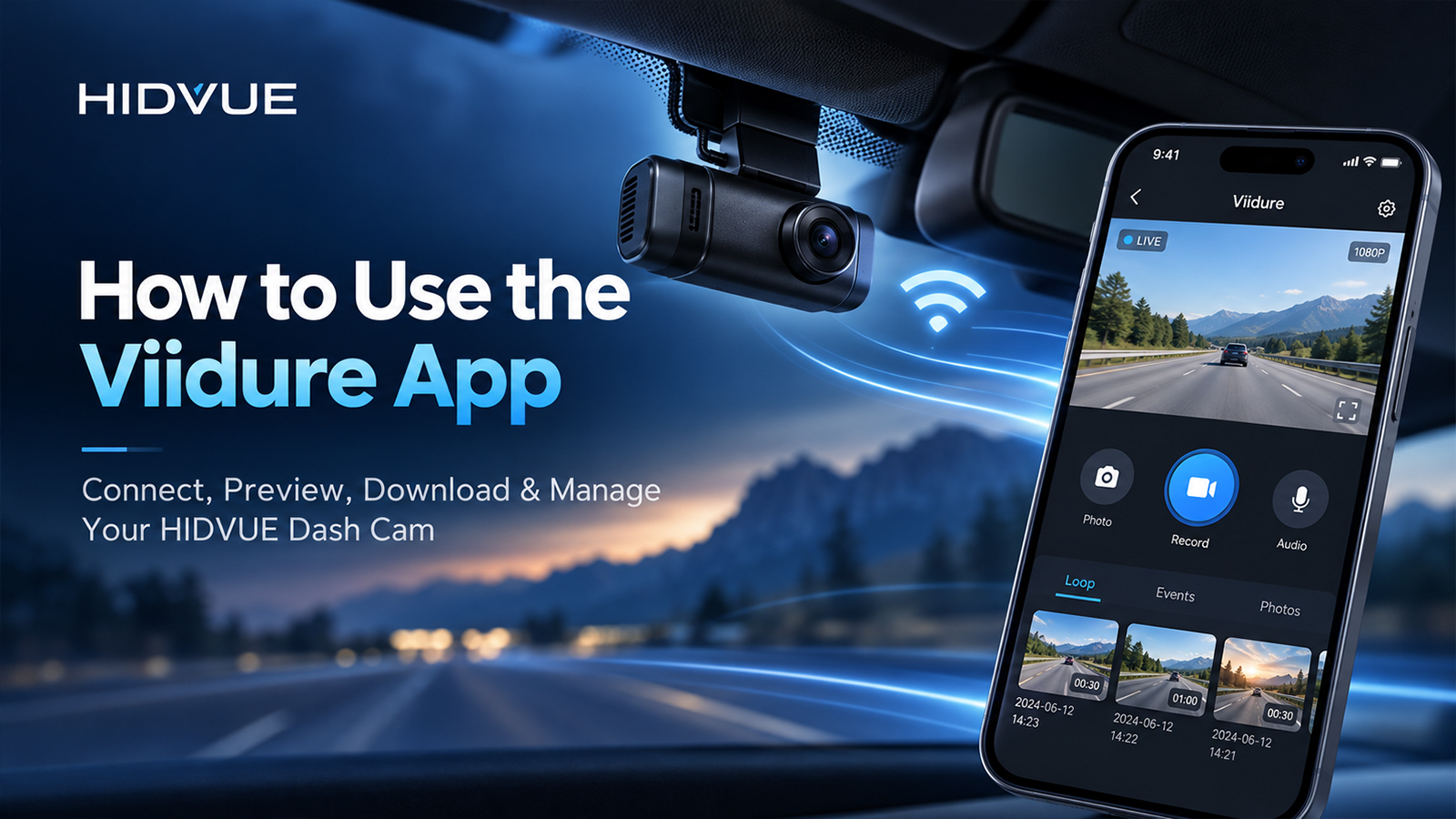
Take Control of Your HIDVUE Dash Cam with the Viidure App
A dash cam should be easy to use, not just easy to install. With a compatible HIDVUE dash cam and the Viidure app, you can connect your smartphone directly to your camera's Wi-Fi to preview the view ahead, review recorded footage, download important clips, and adjust supported settings.
This guide explains how the connection works, what you can do in the app, and how to solve common Wi-Fi problems. Most importantly, it clarifies the difference between local Wi-Fi access and remote monitoring, so you know what to expect before you get started.
What Is the Viidure App?
Viidure is a third-party mobile application used with compatible Wi-Fi dash cams. It is available for iPhone and Android. On supported HIDVUE camera models, Viidure provides a convenient way to access the camera without removing its memory card for every video review.
Rather than relying on a cloud connection, your phone connects to the dash cam's own local Wi-Fi network. The camera records footage to its memory card, while the app acts as a nearby viewing and management tool.
Please note: Viidure is not developed or owned by HIDVUE. Available menus and functions can vary by dash cam model, firmware version, phone operating system, and app version.
How to Connect Your HIDVUE Dash Cam to Viidure
Step 1: Install the App
Open the App Store on your iPhone or Google Play on your Android phone and search for Viidure. You can also visit the HIDVUE App Download page and scan the available QR code.
Install the application and allow the local network or Wi-Fi permissions requested by your phone when needed for the connection.
Step 2: Power On the Dash Cam
Start your vehicle and confirm that the HIDVUE dash cam is receiving power. On supported HIDVUE models, the blue indicator light flashes approximately once per second when camera Wi-Fi is operating normally.
Stay inside or close to the vehicle while connecting. The dash cam's Wi-Fi is designed for short-range communication, not internet access over long distances.
Step 3: Connect to the Camera's Wi-Fi Network
- Open your phone's Settings > Wi-Fi.
- Select the Wi-Fi network broadcast by your dash cam. The network name varies by model and firmware; use the name shown in your product instructions or device information rather than assuming every camera has the same name.
- Enter the password supplied with your camera. On models using the factory-default password 12345678, use that password unless it has been changed.
- Remain connected even if your phone displays “No Internet Connection.” This is normal for a dash cam's local Wi-Fi network.
Step 4: Open Viidure
Return to the Viidure app and follow its device connection prompts. Once the camera is recognized, you can access the functions supported by your HIDVUE model.
If your phone automatically switches back to mobile data or another Wi-Fi network, reconnect to the camera and temporarily disable automatic network switching if necessary.
What Can You Do with Viidure?
1. View the Camera's Live Preview
The app can display a nearby live view from a connected compatible dash cam. This is helpful when checking the camera angle after installation or confirming that the lens is pointed correctly.
Live preview is not the same as original recorded video quality. The image shown on your phone may be compressed to make viewing smoother. To judge actual image quality, review the saved recording.
2. Review and Download Recorded Videos
Use the camera files or playback section of Viidure to find saved videos on the memory card. Depending on the hardware and app version, you can play compatible clips directly from the camera or download them to your phone for later viewing.
For important footage, download the original recording and save a backup. Large, high-resolution files may take longer to transfer over Wi-Fi. Do not operate the app while driving.
3. Access Camera Settings
On supported models, the app provides settings for available camera functions. These may include video or audio recording options, date and time, or memory-card management. Only settings supported by your actual hardware and firmware will appear.
If your camera supports formatting its microSD card through Viidure, remember that formatting erases the recordings stored on the card. Back up anything important first.
4. Capture and Save Photos
Certain compatible configurations support taking photos through the camera controls or app. The availability and storage location of photos depend on your HIDVUE model and app version.
Does the Dash Cam Need to Stay Connected to Your Phone?
No. Once the dash cam is powered on and working normally, it can record to its memory card without keeping your smartphone connected to Wi-Fi or leaving Viidure open.
Connect your phone when you want to review footage, download clips, check the camera view, or change available settings. When finished, disconnect from the camera's Wi-Fi to restore normal use of your phone's internet connection or wireless CarPlay/Android Auto.
Does Viidure Support Remote Viewing, Cloud Storage, or Notifications?
HIDVUE's current compatible dash cam setup uses local Wi-Fi connectivity. You need to be close enough to connect directly to the camera. It does not provide HIDVUE remote live viewing over the internet, real-time push alerts from a parked car, or HIDVUE cloud video storage.
Similarly, do not confuse the app's local preview with a remotely accessible surveillance system. Some HIDVUE configurations may support GPS route information when compatible GPS hardware is installed, but that is not continuous remote vehicle tracking. Check the individual product specifications for GPS availability.
Wi-Fi Connection Troubleshooting: Six Things to Check
If Viidure cannot connect to your HIDVUE dash cam, work through these steps in order.
1. Confirm That the Camera Is Powered On
Start the engine and check the camera's indicator light. On supported HIDVUE models, a blue light flashing about once per second indicates that Wi-Fi is running normally. If the camera has no power, check the approved power connection first.
2. Stay Near the Dash Cam
Connect from inside the vehicle if possible. Move the phone closer and avoid testing from a distant room, since the dash cam creates a short-range local network.
3. Choose the Correct Wi-Fi Network
Open your phone's Wi-Fi settings, find the camera network, and enter the password provided for your model. If you previously connected with a different password, choose Forget This Network and connect again.
4. Disconnect Wireless CarPlay or Android Auto
Wireless CarPlay and Android Auto can compete with the dash cam for your phone's Wi-Fi connection. Temporarily disconnect from your vehicle's wireless infotainment connection, then join the dash cam's network. If necessary, also temporarily disable a VPN or automatic mobile-data switching while troubleshooting.
5. Check App Permissions and Updates
Update Viidure to the latest compatible version. On iPhone, verify that Local Network access is allowed for the app. On Android, grant the connection permissions requested by the app, where applicable.
6. Restart or Reset Only If Necessary
Restart the app, phone, and camera and try again. If your supported HIDVUE model remains unresponsive, its instructions may provide a PHOTO-button reset procedure (approximately 15 seconds). Treat this as a last resort: resetting may restore factory settings, and the exact procedure varies by hardware version. Follow the instructions for your camera or contact HIDVUE support before resetting.
Frequently Asked Questions
Why does my phone say the dash cam Wi-Fi has no internet?
Because the camera's Wi-Fi provides a direct local connection between the camera and your phone. It is not a home router or mobile internet hotspot. Stay connected to access Viidure, then switch back to your regular network when finished.
Can I watch videos from my dash cam when I am away from my vehicle?
Not through HIDVUE's current local-Wi-Fi setup. You need to connect while near the camera. If you already downloaded a clip to your phone, you can view that downloaded copy later without reconnecting.
Will the dash cam stop recording when I disconnect my phone?
No. Under normal operation, the camera records directly to its memory card when powered. A permanent app connection is not required.
Why does the live preview look less clear than the recorded video?
The preview may use a compressed stream for smoother phone viewing. Download or play the original saved footage to assess the camera's actual recording detail.
Can I use Viidure with both iPhone and Android?
Yes. Viidure is available for both platforms. Compatibility with a particular camera and the appearance of app menus depend on the model, firmware, and app version.
Does Viidure enable parking monitoring or motion detection?
The app is a connection and management tool; it cannot add unsupported hardware functions. Supported HIDVUE models can offer parking time-lapse recording with the correct parking-power setup, but HIDVUE's current offering should not be described as supporting motion-triggered parking detection.
Get Started with HIDVUE
A good dash cam experience should make it simple to confirm the camera is working, find an important clip, and continue your journey. Viidure helps with those everyday tasks through a nearby Wi-Fi connection on compatible HIDVUE models.
Download the Viidure App to get started, or Contact HIDVUE Support if you need help with compatibility, power connections, or troubleshooting.
HIDVUE — See a wider world. Capture every journey of your own.